Real workflow

From brand to post in 3 steps

Every image here came out of Studio — our own brand, run through it.

  1. realisticicon.com
    Realistic IconImported
    realisticicon.com
    Colours
    Fonts
    Google SansFjalla One
    Products
    Hand-crafted 3D iconsTransparent PNG icons
    Aesthetic
    Modern, photo-real, clean, 3D

    Brand kit

    Import your brand

    Paste your website. Studio reads its colours, fonts, logo and products into a brand kit you can edit.

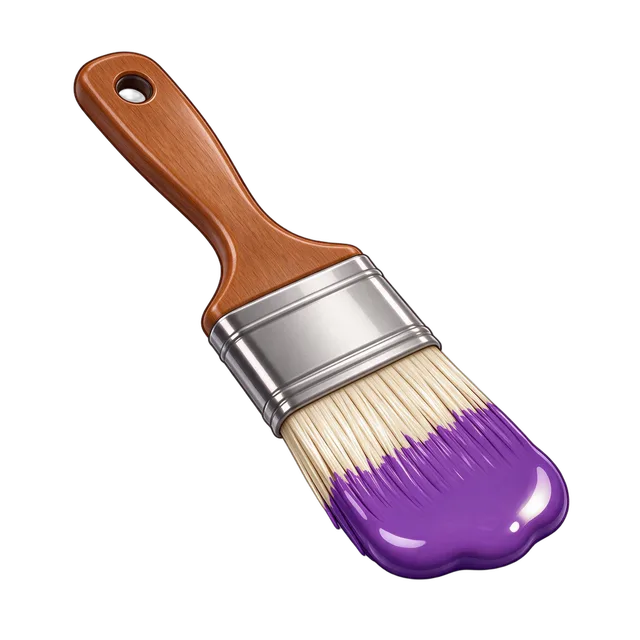
  2. glossy 3D paint brush dipped in violet paint
    3D paint brush icon generated in Studio

    Icon

    Generate the icon

    Describe what you need. Get a 3D icon on a transparent background, ready to download.

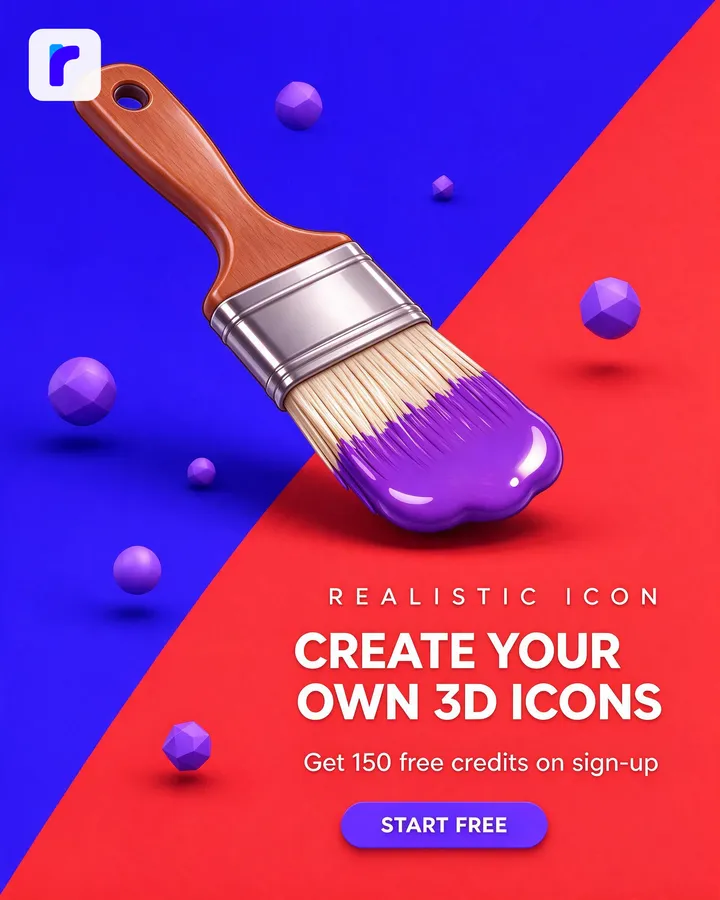
  3. promo post: 150 free credits on sign-up
    4:5 promo banner generated in Studio with the Realistic Icon brand kit

    Banner

    Make the post

    Attach your icon, pick your brand kit and describe the post. Get a 4:5 banner in your colours with your logo, ready to share.

Step by step

What happens in each step

1. Import your brand

  • Paste your site's address — Studio reads its colours, fonts, logo, products and look.
  • Check the draft and fix anything it missed; nothing is saved until you press Save.
  • Sites that block bots or draw everything with JavaScript give less — fill in the rest by hand.
  • Only import a brand you own or are allowed to use.

2. Generate the icon

  • Describe the icon in your own words, in any language.
  • Attach reference images, or icons from the library, to steer the subject.
  • Each run makes up to four versions, on a transparent background.

3. Make the post

  • Pick Banner, choose your brand kit and say what the post is about.
  • Attach the icon from step 2 to make it the hero of the banner.
  • Choose a size: square, 4:5 social post, 16:9, 9:16 story and more.
  • Your real logo goes into a corner that is kept clear for it.

Try it with your own brand

New accounts start with 150 free credits — enough for your first icons and banners.